Member benefits can be shared by adding team members (sub-accounts). Administrators (default: mian account) may set usage limits for each feature for every member. The maximum number of addable team members (sub-accounts) varies by membership plan.
How to Add Team Members (Sub-accounts)
Administrator (Mian Account by Default) Sends Invitations
Invitation Steps
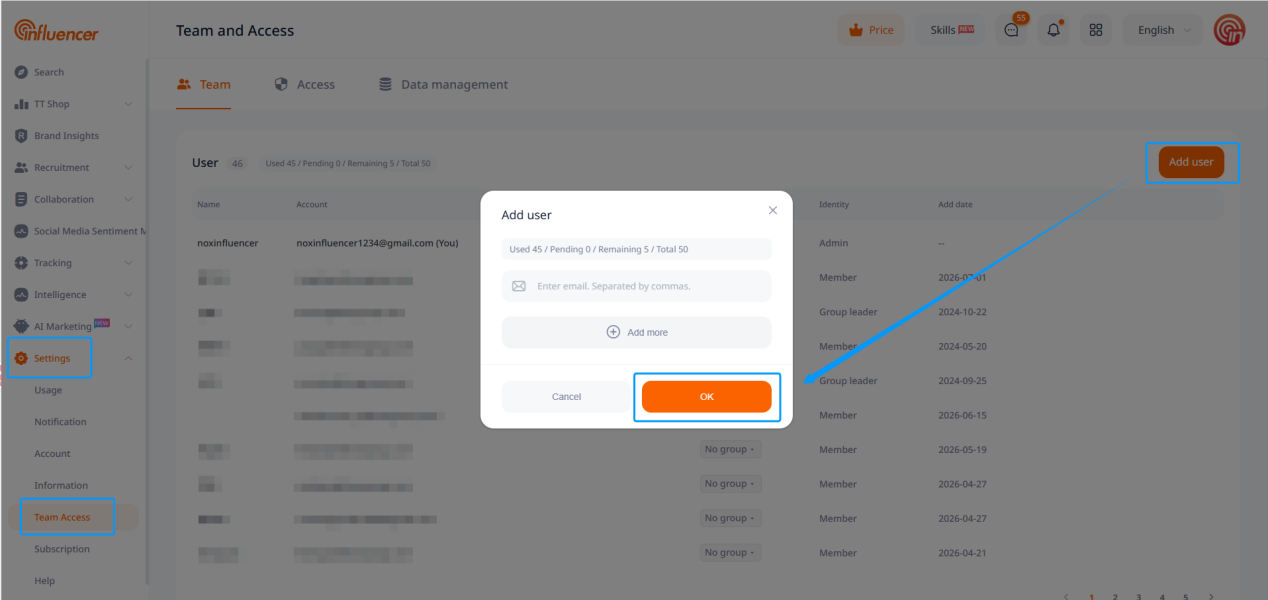
- On the left-hand navigation bar, the administrator clicks Settings – Team Access to access the Team page.
- Click the Add User button in the upper-right corner and enter the email address of the member to be added.
- Click OK. The system will send an invitation email to the member’s inbox.
Invitation Status Descriptions
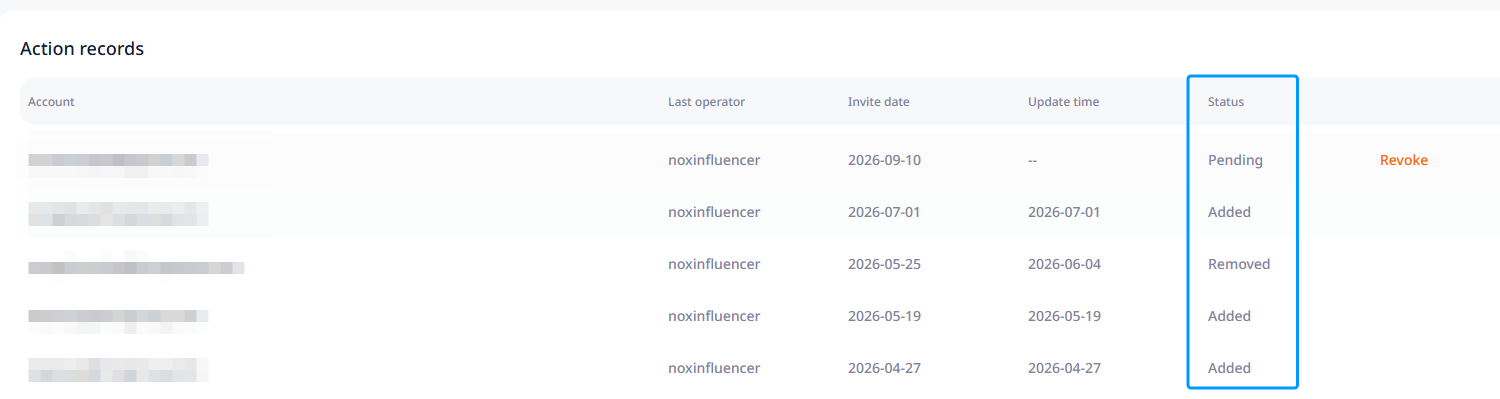
After sending invitations, administrators may check invitation statuses under Operation Records. Status definitions are listed below. In case of failed additions, resend the invitation as needed.
- Pending: Invitation sent; the team member has not yet accepted it.
- Added: The team member has accepted the invitation, and the email has been successfully added as a sub-account.
- Expired: The invitation link is invalid. The administrator needs to resend the invitation.
- Removed: A previously-added member has been removed from the team, and the email is no longer a sub-account.
Team Member Accepts the Invitation
Members shall follow different procedures based on the registration status of their email address.
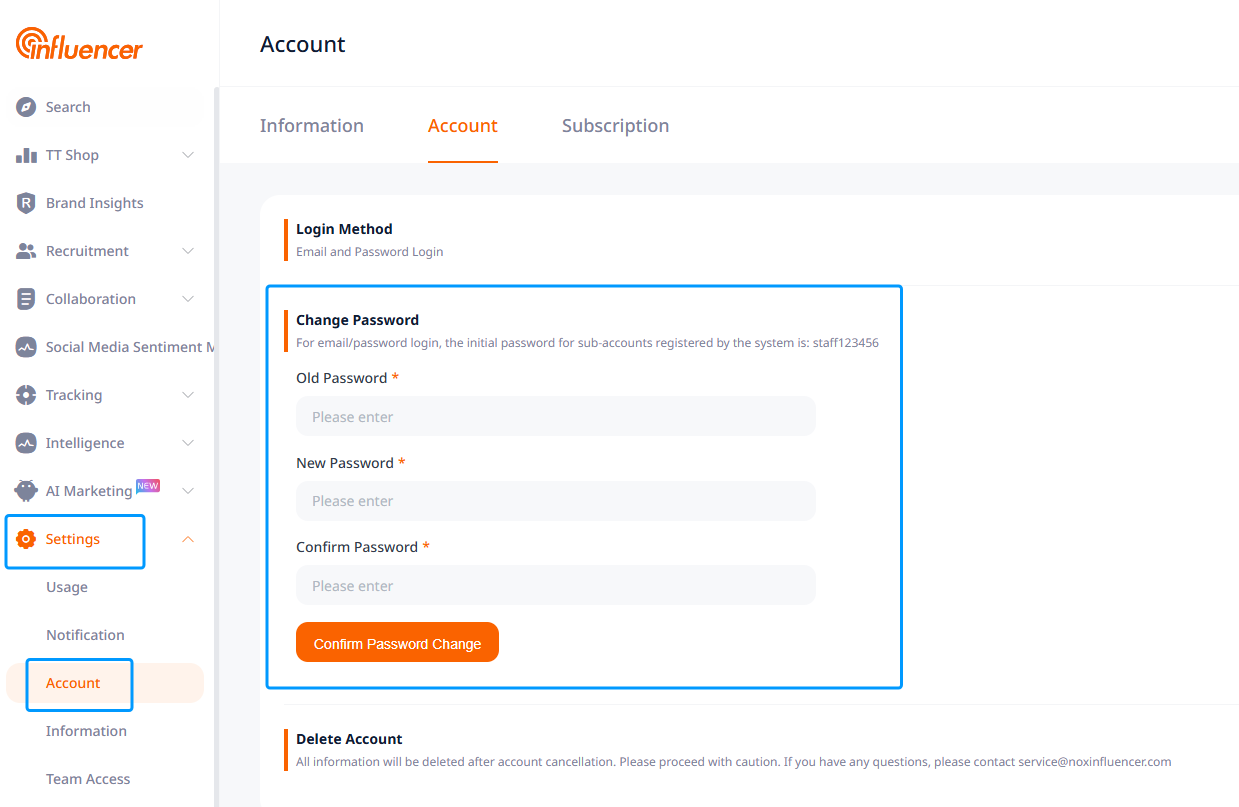
- If the email has not been registered for a NoxInfluencer brand account: follow the steps under Email Verification & Login Instructions below. Upon email verification, a sub-account will be automatically created. The system will generate an initial login password: staff123456.
- If the email has already been registered for a NoxInfluencer brand account: log into the existing account first, then complete email verification.
Email Verification & Login Instructions
- The team member logs into the email receiving the invitation.
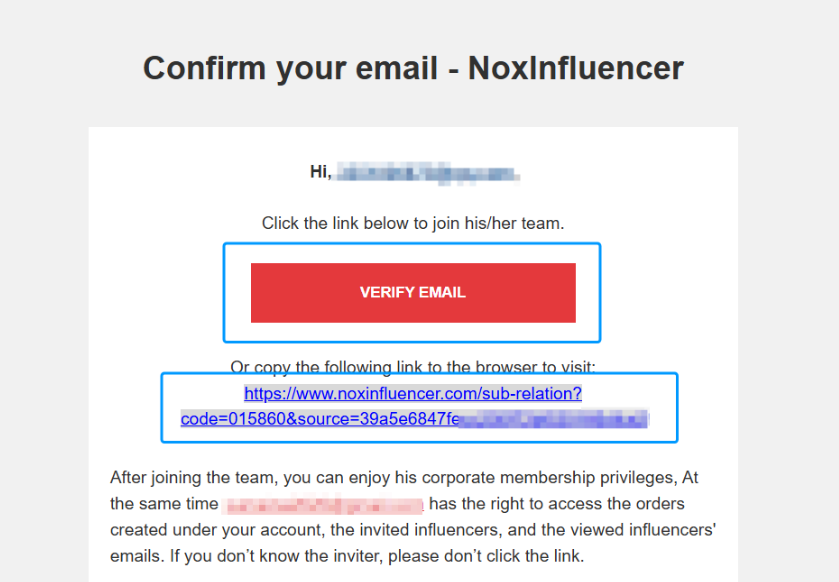
- Open the invitation email (Subject: Confirm your email – NoxInfluencer). Click the VERIFY EMAIL button or the link beneath the button to verify your email.
- After verification is complete, you will be directed to the Dashboard.
To change the system-generated initial password for the auto-registered account, go to Settings-Account page.
How to Delete Team Members (Sub-accounts)
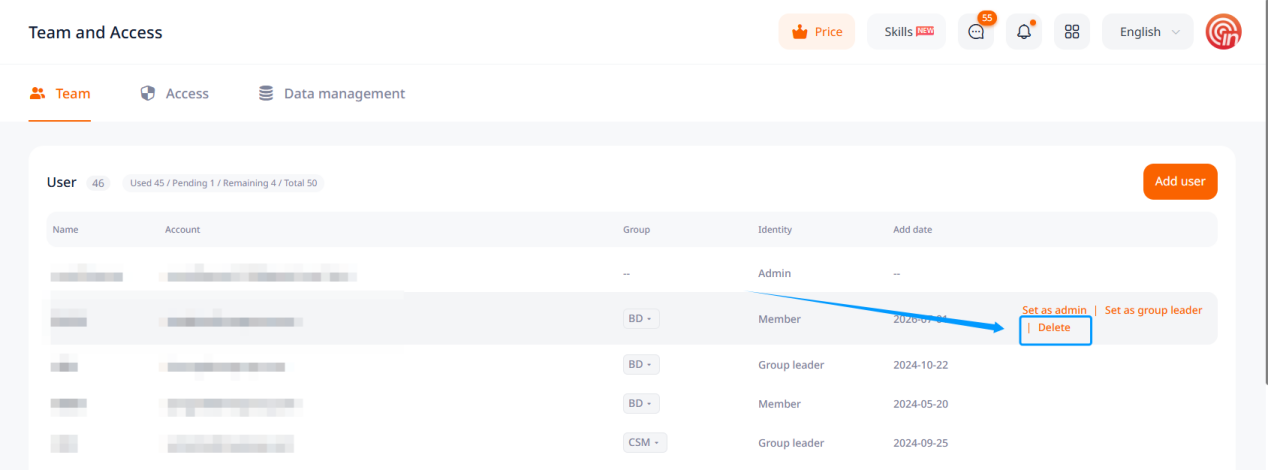
- On the left-hand navigation bar, the administrator clicks Settings – Team Access to access the Team page.
- Hover your mouse over the target member’s account information and click the Delete option that pops up.
Note: Once a member is deleted, all data under their sub-account will be automatically transferred to the administrator’s account. Data cannot be restored even if the member is re-invited. Please proceed with caution.
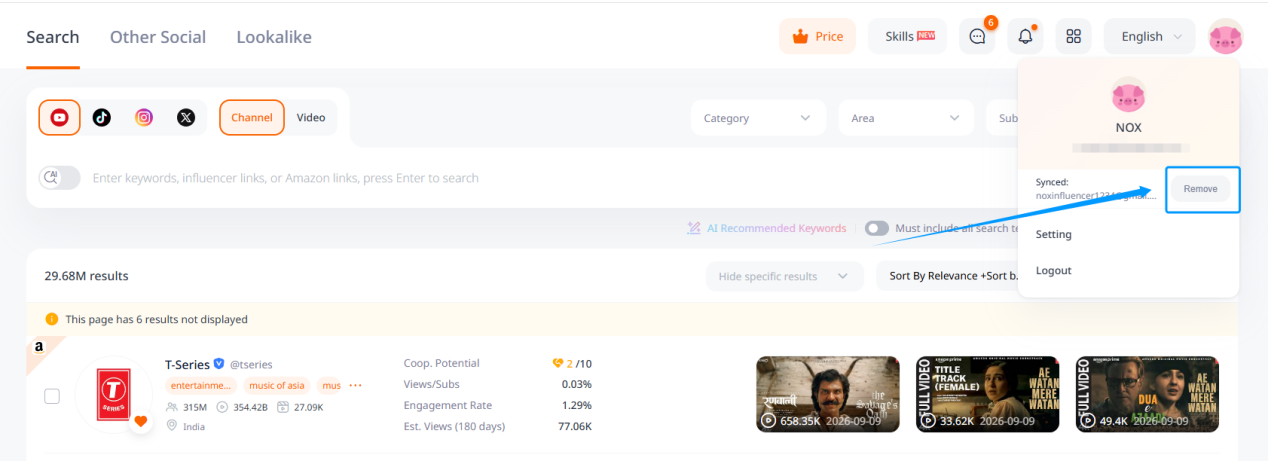
Besides administrator-initiated removal, members may unbind themselves from the administrator account. This operation is irreversible. Please exercise caution.
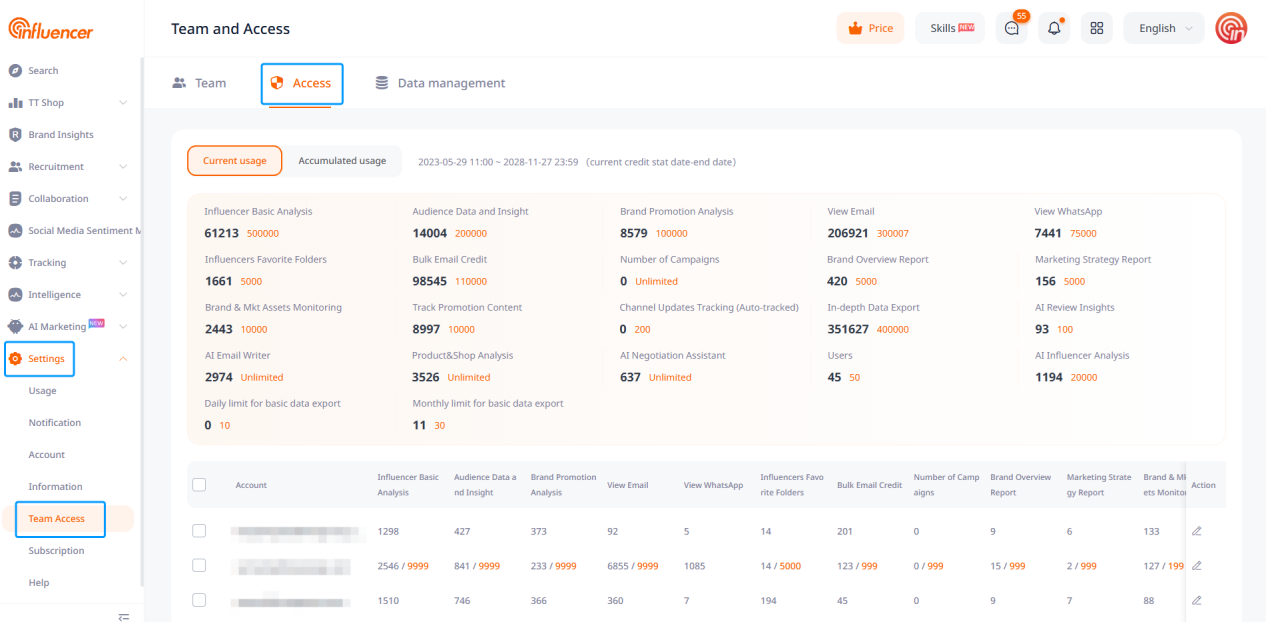
Team Member Permission Management
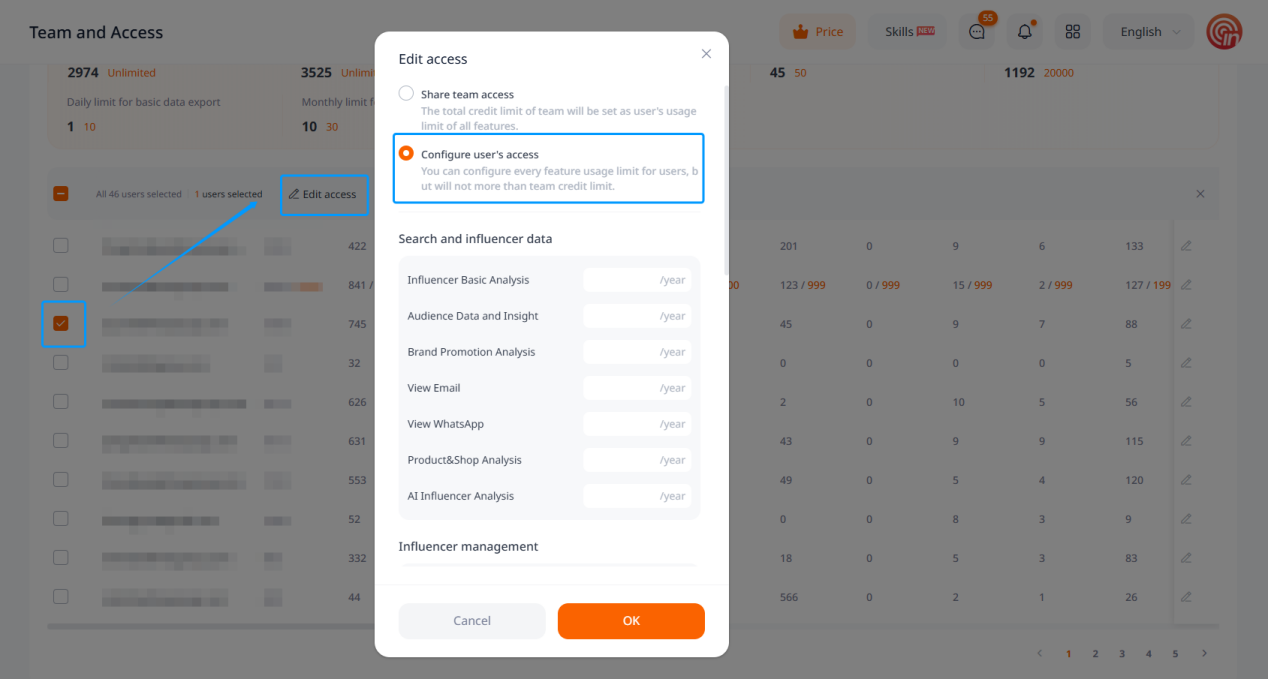
You may view plan quota details and quota consumption at the Access page. Administrators (default: mian account) can configure per-member usage caps for each feature.
Note: These settings define individual usage limits, and do not allocate the quota of the mian account.
Frequently Asked Questions
Q: I have not received the sub-account invitation email.
A: Please check your spam or junk folder first. The email subject is Confirm your email – NoxInfluencer, and the sender address is no-[email protected]. If you still cannot locate the email, reach out to your Customer Success Manager or email us at [email protected].
Q: How do I reset my sub-account password?
A: For Google-login accounts, reset your password via Google’s official account-recovery service. For email-login accounts, use the Forgot Password function on the NoxInfluencer login page. If password recovery is unavailable because the account uses another person’s email, contact your Customer Success Manager or email us at [email protected].
Q: My sub-account permissions suddenly disappeared.
A: When permissions vanish unexpectedly, please verify the following:
- Confirm your login method. Permissions are separate for email-password login and Google one-click login. Try switching to the alternative login method.
- Check whether the mian account has deleted this sub-account. Ask your administrator to confirm whether the sub-account status shows Added.
If the issue persists, contact your Customer Success Manager or send us at [email protected].
Q: The sub-account shows insufficient permissions.
A: Double-check that you are logged into the correct sub-account with the proper login method. Next, go to https://www.noxinfluencer.com/brand/sub-account/quota to check remaining plan quota and confirm whether the administrator has set restrictive usage caps for your sub-account.